


If you’ve got multiple Substack accounts on one iPhone, you’ve probably spent far too long signing in and out of them. I certainly did. Then I found a neat workaround that keeps every account logged in, each one a tap away on your home screen.
I only discovered it recently, so I’m passing it on.

Firstly, you might be wondering why you wouldn’t just have multiple publications under one account, as that is an option, but I guess it depends how you use Substack. I make use of Substack Notes, and I’d like each of my sites to have its own dedicated Notes feed without sharing it with my other publications. To let each publication have its own space and branded profile, creating another account can be the best solution.
I have three publications across three accounts, and the main reason is so each publication can have its own Notes feed, as this is a vital feature I use to share updates.
How to manage multiple Substack accounts
If you open Safari on your iPhone and visit Substack, you can only sign into one account, which isn’t ideal, but trust the process. Here’s what you need to do in Safari:
Visit Substack.com in Safari and sign in to your first account.
Once signed in, go to your dashboard by tapping your profile image at the top right and selecting Dashboard.
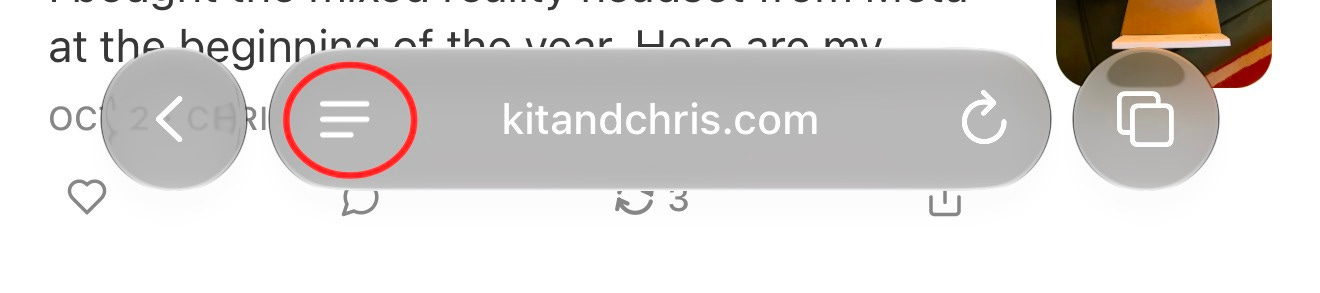
Then, at the bottom of Safari, tap the icon to the left of your website address:
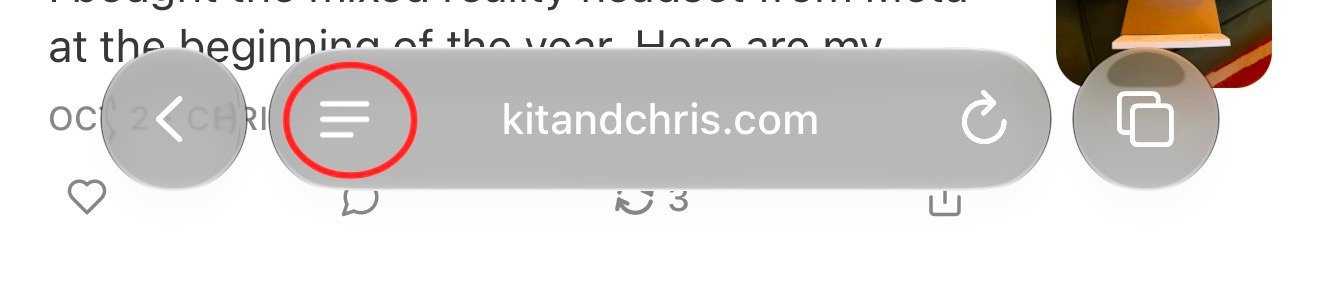
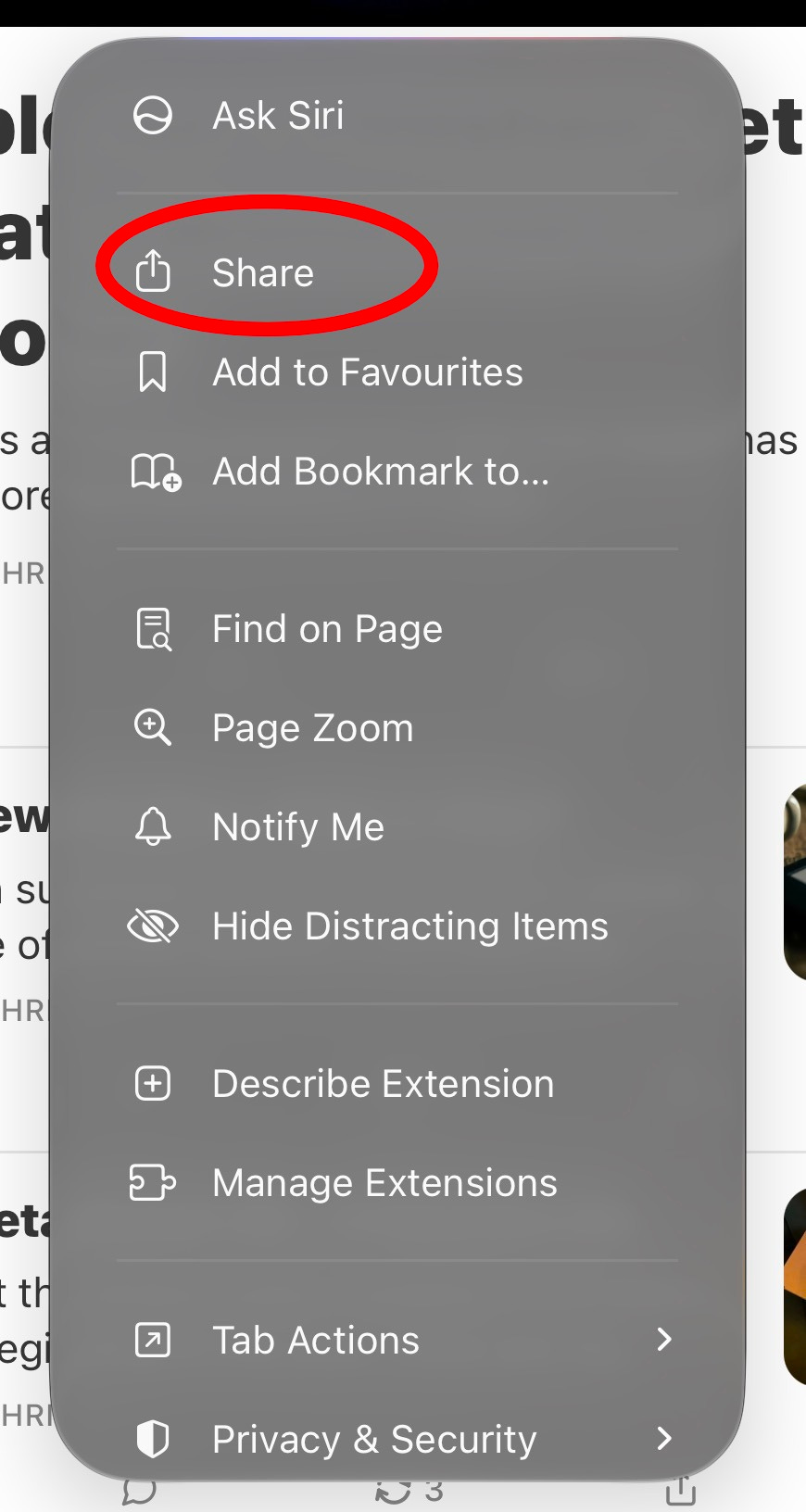
You'll then see a menu. Tap Share:
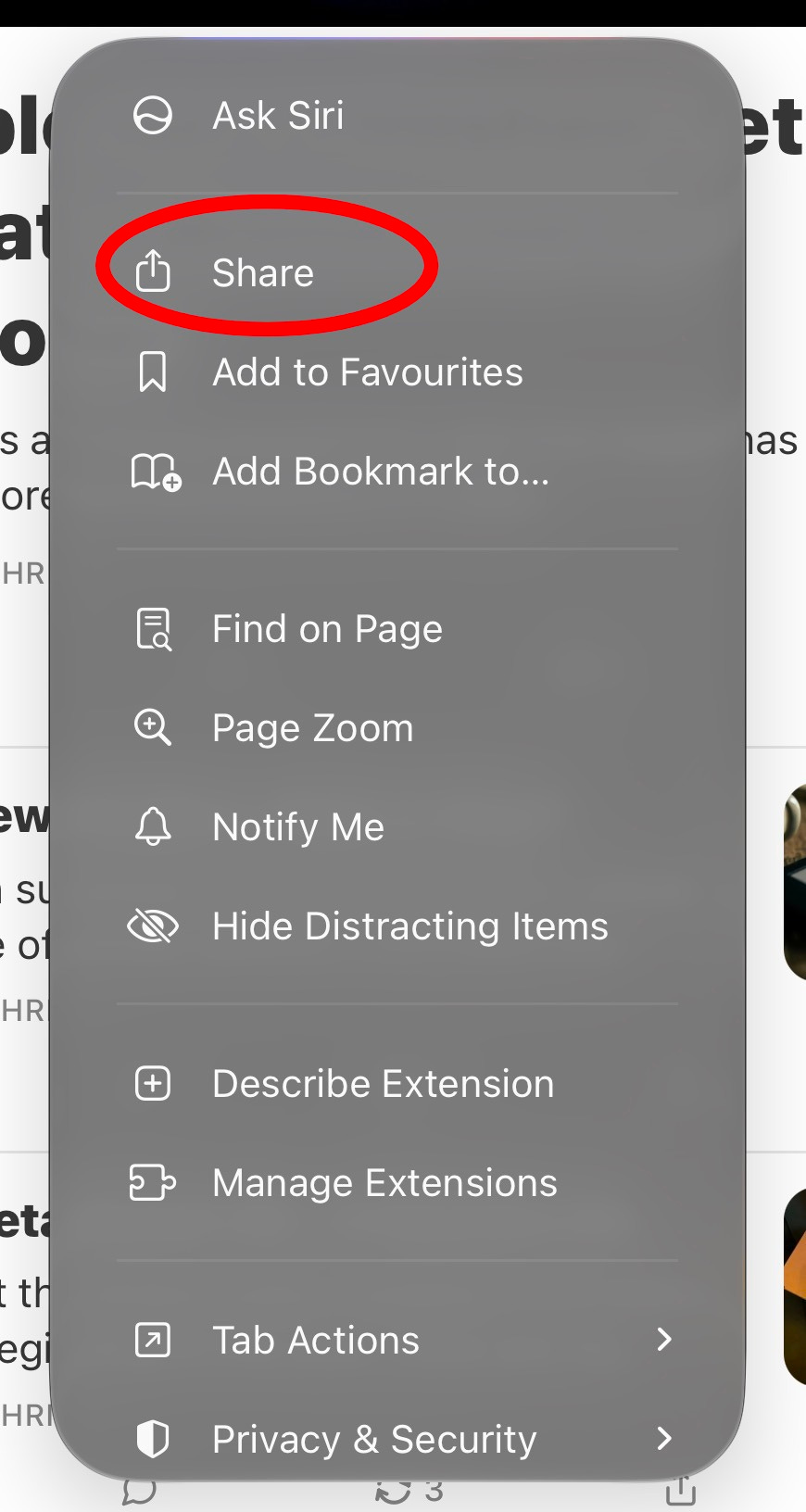
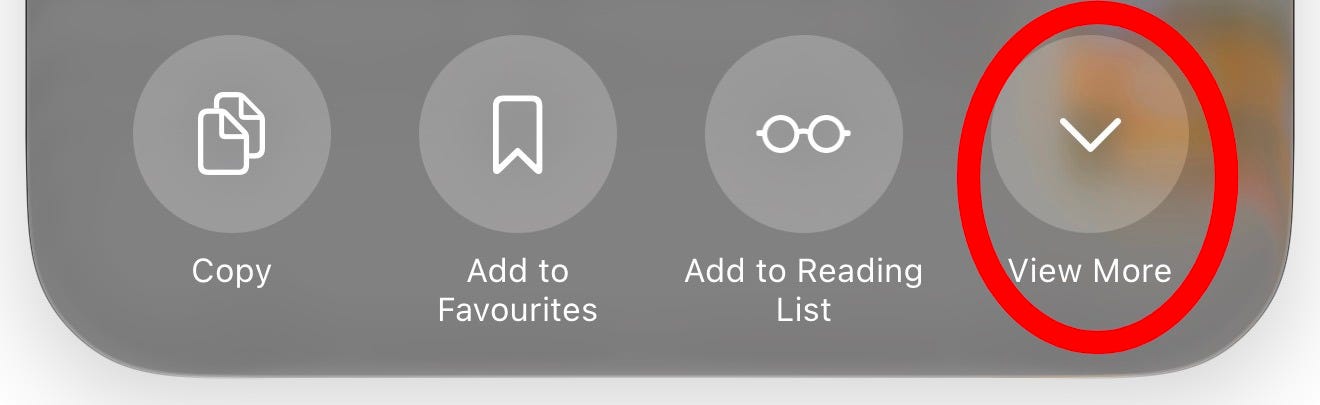
Then expand the menu that pops up by tapping View More:
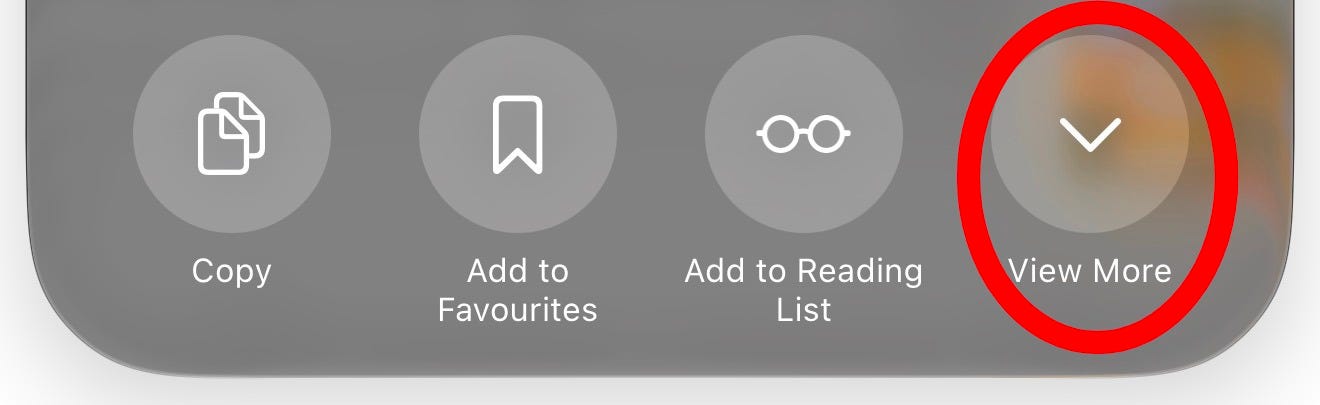
Then you’ll see an option to Add to Home Screen.

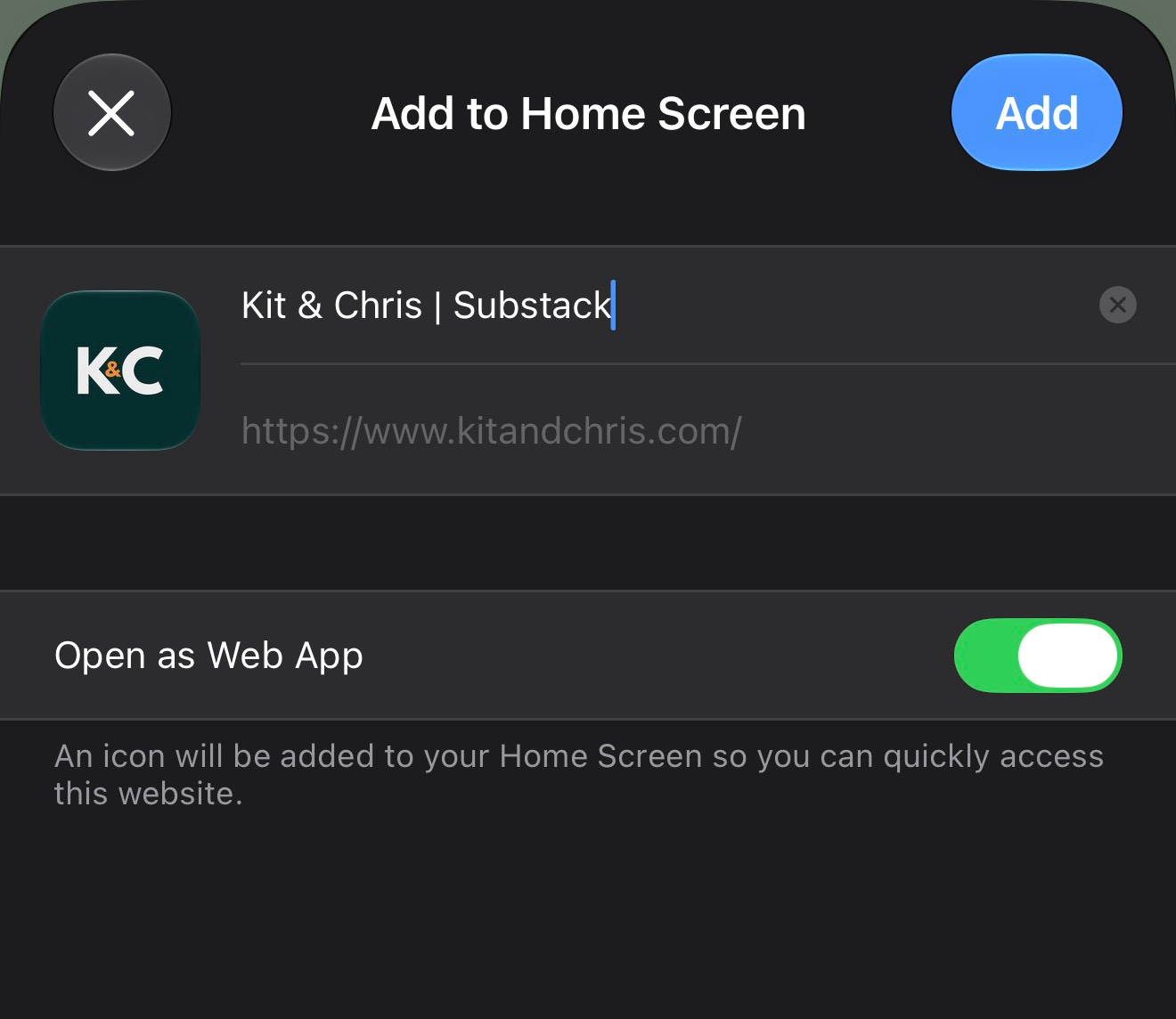
Finally, you’ll get to name the icon for your home screen, and it’ll use your Substack publication icon.
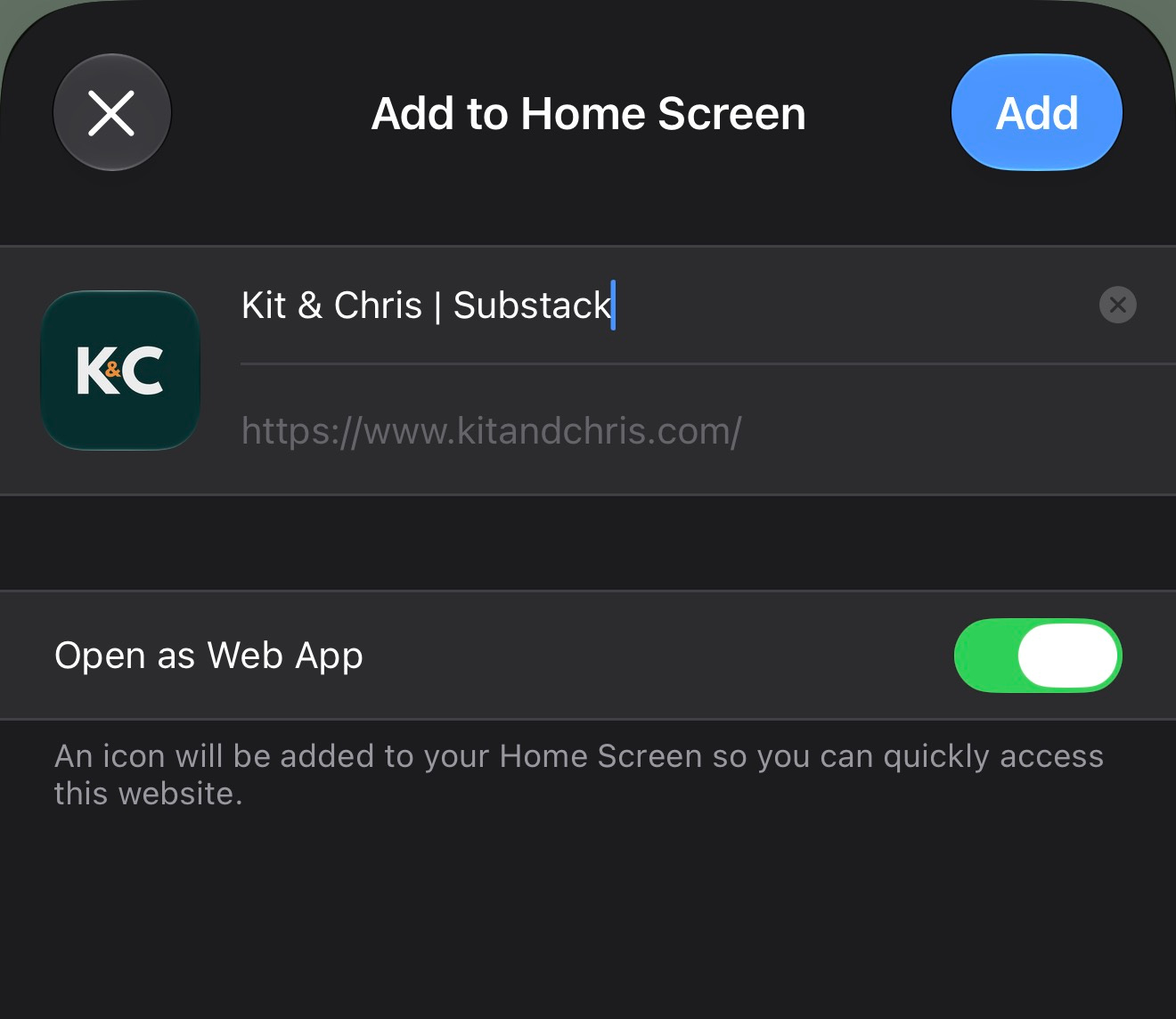
Once you’ve done this, open the new icon on your home screen, then sign out of Substack and sign in again. This effectively resets the Substack login, and once you’ve signed back in, you’ll stay signed in to Substack only in that home screen app.

Each icon keeps its own separate login, which is what makes this work.
Simply repeat the above for each Substack publication you have across different accounts, signing in again once each icon is on your home screen. You’ll remain signed in to each one and be able to launch them instantly from your home screen.
I find this very useful and hope it helps you too.
Thanks,
Chris